
Online multiplayer on Xbox Series X should feel smooth and responsive, but many players still search for how to optimize xbox series x for multiplayer because lag, high ping, and random disconnects ruin the experience. This usually happens because default settings are not designed for competitive online play. Even a powerful console cannot deliver smooth multiplayer without the right setup.
The good news is that most multiplayer issues can be fixed with the right setup. Small changes in network, system, and performance settings can make a clear difference. When everything works together, matches feel faster, controls feel tighter, and frustration goes down.
In this guide, you will learn how to get the best possible multiplayer performance from your Xbox Series X. The focus is on practical steps that real players use, not theory. Each section builds on the last so you can improve stability, reduce lag, and enjoy smoother online games.
Why Xbox Series X Multiplayer Feels Laggy for Many Players
Many Xbox Series X players face lag only during multiplayer games. Offline gameplay feels smooth, but online matches often show delays. Shots feel late, movement feels slow, and reaction time suffers, especially in competitive modes.
This usually happens because online gaming depends more on network stability than console power. Even with fast internet, high ping or small connection drops can affect performance. Default system settings and background features can also add delay without you noticing.
Common reasons for multiplayer lag include:
- High ping despite good internet speed
- Wi-Fi instability during online play
- Background apps or Quick Resume running
- NAT type not fully open
- Game servers far from your location
Once you understand these causes, fixing multiplayer lag becomes much easier. The next sections focus on simple changes that improve online performance.
Also Read This: How to Optimize Xbox Series X for Low Latency Gaming
Quick Settings Checklist for Lag-Free Multiplayer
If you want faster results, start here. These are the basic settings most players skip, but they make a real difference in multiplayer games. You do not need technical knowledge for this checklist. Just make sure each item is done before playing online.
Quick checks to improve multiplayer performance:
- Use a wired Ethernet connection instead of Wi-Fi
- Make sure NAT type shows Open in network settings
- Turn Game Mode ON on your TV or monitor
- Enable Auto Low Latency Mode in Xbox display settings
- Select Performance Mode inside multiplayer games
- Close background apps and unused games
Many players notice smoother matches after fixing just two or three items from this list. This checklist removes the most common causes of delay before you move on to deeper settings.
Internet and Network Settings for Smooth Online Gaming
A stable internet connection is the foundation of smooth multiplayer on Xbox Series X. Most online problems come from network issues, not from the console itself. For consistent gameplay, you need steady speed, low ping, and no packet loss working together.
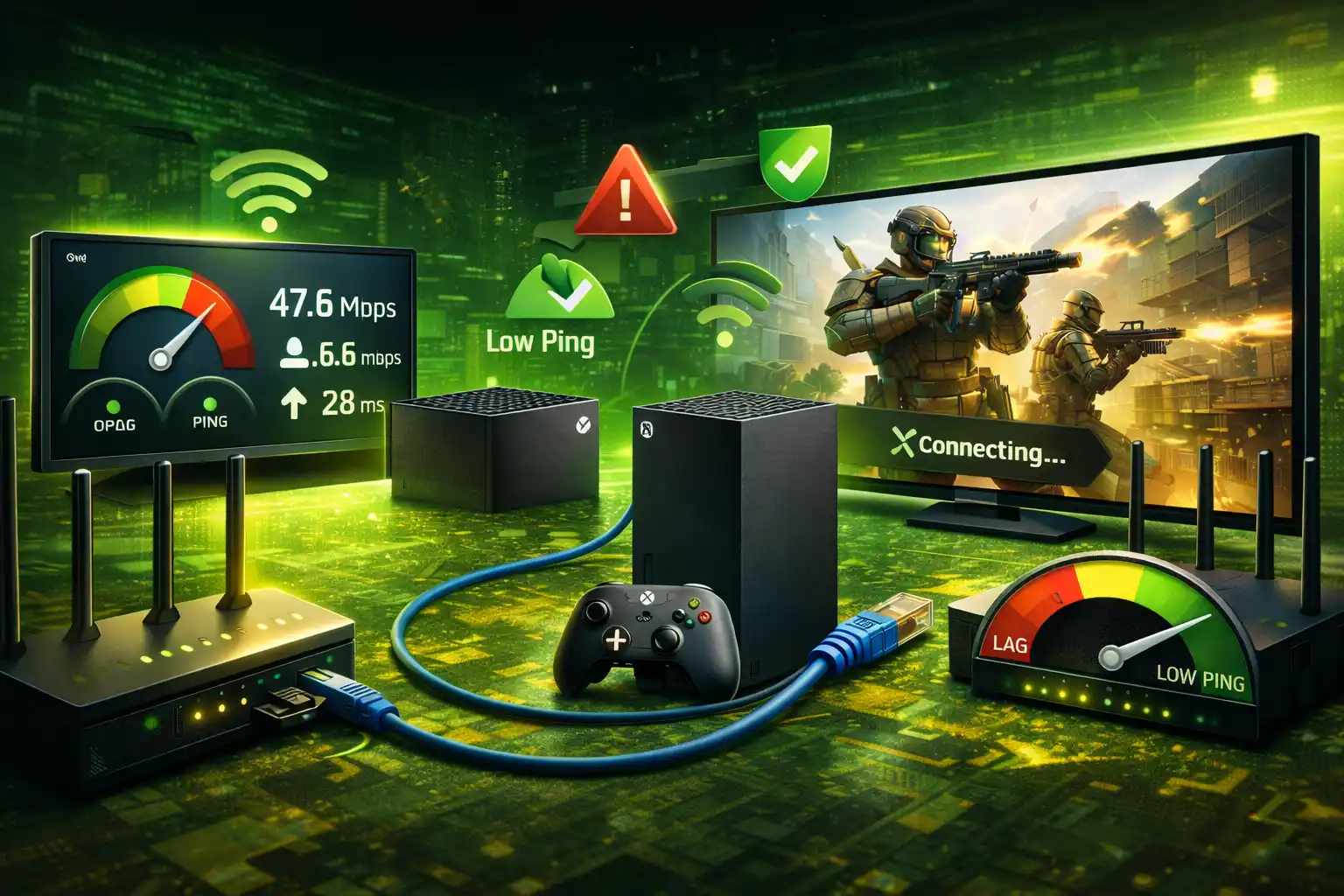
Wired Ethernet vs Wi-Fi on Xbox Series X
A wired Ethernet connection is the most reliable option for multiplayer gaming. It sends data directly to your router, which helps keep ping stable. Wi-Fi can work, but it often causes sudden spikes when other devices are active.
Key points:
- Ethernet provides lower and more stable ping
- Wi-Fi is sensitive to distance and interference
- Peak hours can reduce Wi-Fi performance
Best Internet Speed and Ping for Multiplayer Games
Many players focus only on internet speed, but ping matters more for online games. Even very fast internet can feel laggy if ping is high.
Recommended ranges for smooth multiplayer:
- Download speed: 25 to 50 Mbps
- Upload speed: 5 to 10 Mbps
- Ping:
- Below 30 ms feels excellent
- 30 to 60 ms feels good
- Above 80 ms causes noticeable lag
Fast shooters and competitive games benefit the most from lower ping. High speed without low ping will still feel slow in online matches.
How to Fix High Ping and Packet Loss
High ping and packet loss usually come from network congestion or unstable connections. These problems can often be fixed without changing your internet plan.
Helpful actions:
- Restart your router before long gaming sessions
- Stop downloads and streaming while playing
- Use the Xbox network test to check ping and stability
- Choose a wired connection whenever possible
Once your network is stable, console and display settings will have a much stronger effect on multiplayer performance.
How to Optimize Xbox Series X for Multiplayer Using System Settings
Network stability alone is not enough for smooth multiplayer. Xbox system settings also play a big role in how fast your actions register during online games. Small changes here can reduce delay, improve responsiveness, and keep gameplay consistent during long sessions.
Enable Low Latency and Performance Features
Xbox Series X includes built-in features designed to reduce delay between your controller and the screen. These settings should always be enabled for multiplayer gaming.
Important settings to check:
- Auto Low Latency Mode should be turned on
- Allow your TV or monitor to switch to game mode automatically
- Keep performance focused options enabled when available
These features help remove extra processing that can slow down response time in online matches.
Improve Console Performance and Stability
Background activity can quietly affect multiplayer performance. Games may feel smooth at first, then start lagging as system resources get divided.
Steps to improve stability:
- Fully close games you are not playing
- Avoid leaving apps running in the background
- Restart the console occasionally to clear memory
- Keep system updates installed for bug fixes and stability
When system settings are properly tuned, your Xbox Series X can focus all its power on multiplayer gameplay. This makes controls feel faster and reduces unexpected slowdowns during matches.
Display, FPS, and Input Lag Optimization
Display settings control how fast you see what is happening in the game. Even with a good network and system setup, wrong display options can add delay. This section focuses on making visuals smoother and reducing input lag for online multiplayer.
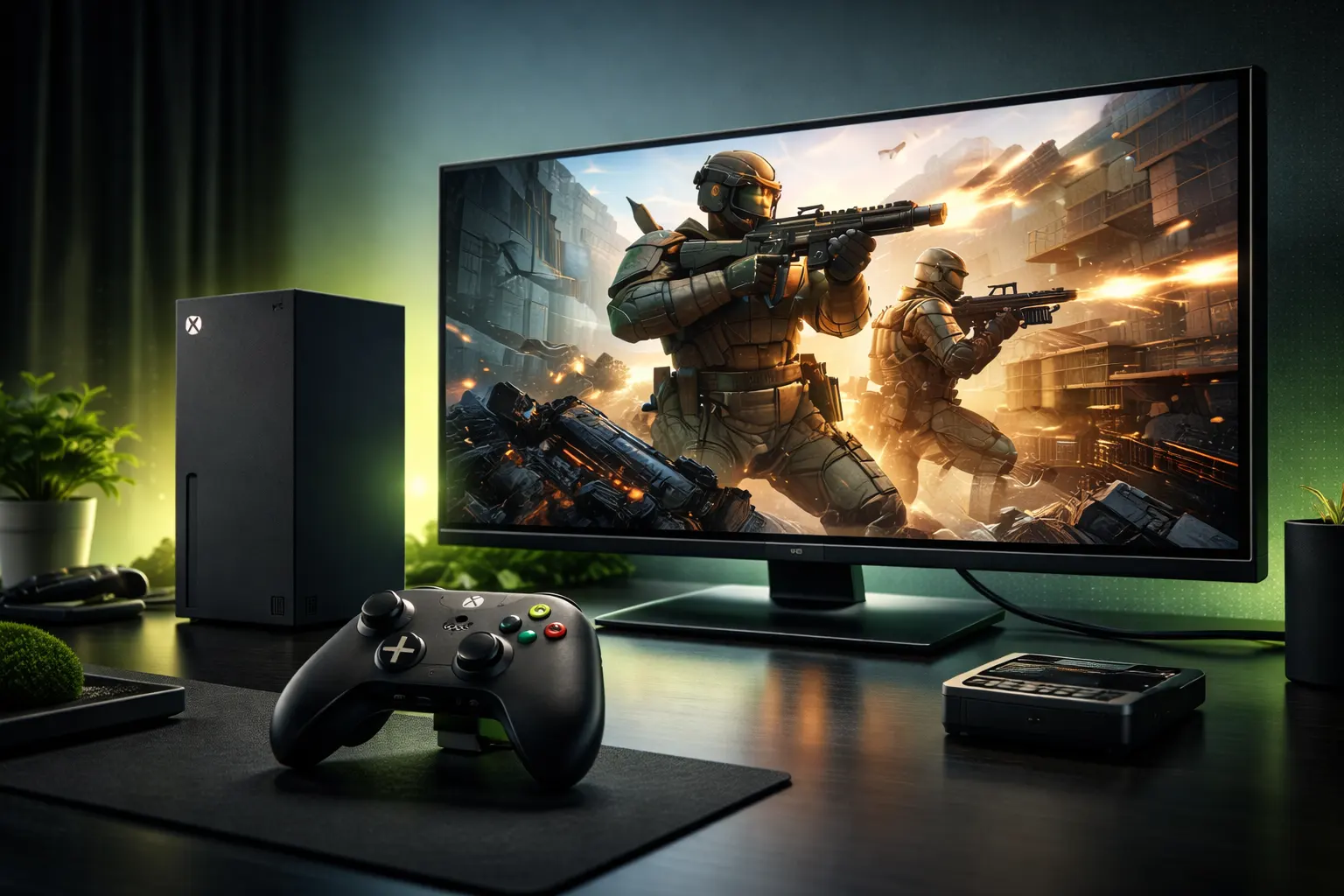
Best Refresh Rate and Resolution for Multiplayer
Higher refresh rates make movement feel smoother and more responsive. Resolution affects visual quality, but in multiplayer, performance matters more than looks.
Recommended settings for most players:
- Use 120Hz if your TV or monitor supports it
- Use 60Hz if 120Hz is not available
- Choose lower resolution if it helps keep frame rate stable
Stable frames feel better than sharp visuals during fast online matches.
Reduce Input Lag Using TV and Xbox Settings
Input lag is the delay between pressing a button and seeing the action on screen. Many TVs add processing that slows this down, especially outside game mode.
Important checks:
- Turn Game Mode ON on your TV or monitor
- Disable extra picture features like motion smoothing
- Enable Variable Refresh Rate if supported
- Keep display processing as simple as possible
When display and Xbox settings work together, actions feel instant. This makes aiming, movement, and reactions more reliable in competitive multiplayer games.
Best In-Game Settings for Competitive Multiplayer
In-game settings decide how responsive multiplayer feels. Many games are set to look good by default, not to play fast. For online matches, smooth performance and quick reactions matter more than visual quality. Small changes here can give a clear advantage.
Performance Mode vs Quality Mode
Most multiplayer games offer two main modes. One focuses on speed, the other on visuals. For competitive play, the difference is easy to notice.
| Performance Mode | Quality Mode |
| Higher and stable frame rate | Lower and unstable frame rate |
| Faster response time | Slower input response |
| Best for multiplayer | Better for single-player |
| Fewer visual effects | More visual effects |
For online gaming, performance mode keeps gameplay smooth and consistent. Quality mode may look better, but it often causes frame drops during action.
Motion Blur vs V-Sync vs Visual Effects
Extra visual features can add delay without you noticing. Turning them off improves clarity and control in fast multiplayer matches.
| Setting | Recommended for Multiplayer | Reason |
| Motion Blur | Off | Clearer movement and aiming |
| V-Sync | Off if input lag appears | Reduces delay |
| Extra Effects | Low or Off | Improves frame stability |
Cleaner visuals help you spot enemies faster and react with better timing. Less processing means the game responds more quickly to your inputs.
NAT Type, Ports, and Router Configuration
NAT and router settings decide how well your Xbox connects to other players and game servers. When these settings are wrong, multiplayer problems appear even if your internet speed looks fine. Fixing this section helps with matchmaking, party chat, and stable online sessions.
How to Get Open NAT on Xbox Series X
NAT controls how your Xbox talks to the internet. An open NAT gives the best multiplayer experience. Moderate or strict NAT can cause delays, failed matches, and voice chat issues.
What each NAT type means:
- Open NAT allows smooth matchmaking and voice chat
- Moderate NAT may cause slow connections
- Strict NAT often breaks multiplayer features
To improve NAT:
- Enable UPnP in your router settings
- Avoid using multiple routers at the same time
- Restart the router after changes
UPnP and Port Forwarding Explained
UPnP lets the router open ports automatically for gaming. In most homes, this works well and needs no manual setup. Port forwarding is only needed when UPnP fails.
Simple guidance:
- Use UPnP first for easier setup
- Try port forwarding only if NAT stays strict
- Do not open random ports without purpose
Correct router configuration removes hidden connection limits. This makes online matches connect faster and stay stable.
Common Xbox Series X Multiplayer Problems and Fixes
Even with good settings, multiplayer issues can still appear. These problems are common and usually have simple fixes. Understanding what is happening helps you solve the issue faster instead of guessing.
Xbox Series X Keeps Disconnecting Online
Random disconnects often come from unstable networks or router issues. They can happen mid-match and ruin the experience.
Common fixes:
- Restart the router and modem
- Use a wired Ethernet connection
- Stop other devices from heavy internet use
- Check Xbox network status before playing
Party Chat Lag and Voice Delay Issues
Voice chat problems make teamwork difficult. Delays or broken audio usually point to network or NAT issues.
What helps:
- Make sure NAT type is Open
- Close background apps before joining party chat
- Use a stable internet connection
- Restart the Xbox if voice delay appears
Multiplayer Matchmaking Takes Too Long
Slow matchmaking can happen even when your internet speed looks fine. This is often caused by connection restrictions.
Possible reasons:
- Moderate or Strict NAT type
- Server region distance
- Network congestion during peak hours
Fixing these issues improves connection speed and keeps multiplayer sessions stable.
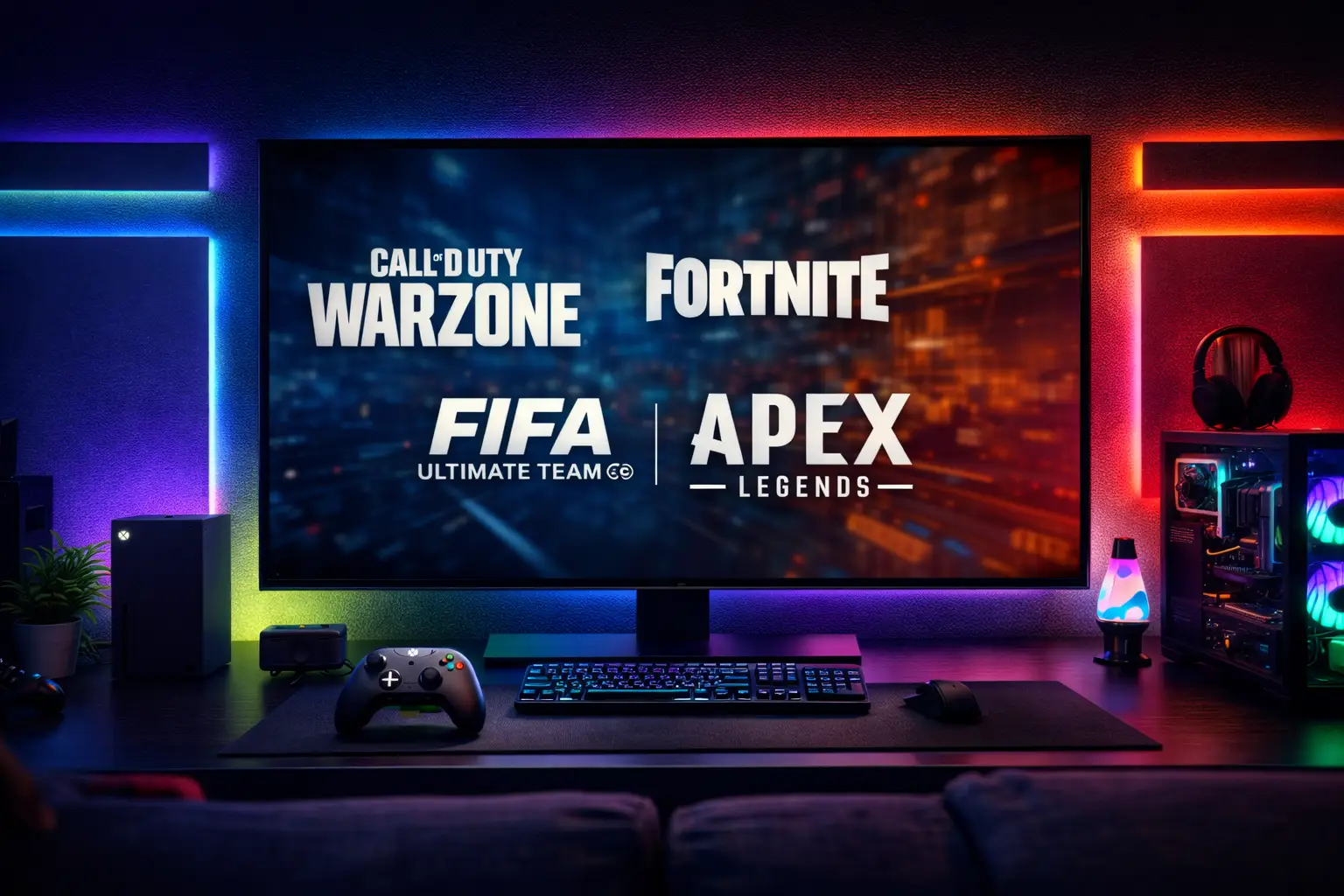
Best Settings for Popular Xbox Multiplayer Games
Each multiplayer game has its own behavior. Copying one setting for all games does not always work. These game-specific settings focus on smoother performance, faster reactions, and stable frame rates during online matches.
Call of Duty and Warzone
This game is very sensitive to frame drops and input delay. Performance and visibility matter more than graphics.
Recommended multiplayer settings:
- Graphics Mode: Performance
- Motion Blur: Off
- Weapon Motion Blur: Off
- Film Grain: Off
- Depth of Field: Off
- On-Demand Texture Streaming: Off
- Field of View: Medium to High (based on comfort)
- Frame Rate Target: Maximum stable
These settings reduce visual noise and keep aiming sharp during fast fights.
Fortnite
Fortnite rewards smooth frames, especially in close builds and edits. Extra effects slow things down during intense action.
Recommended multiplayer settings:
- Rendering Mode: Performance focused
- Motion Blur: Off
- Shadows: Low or Off
- Effects Quality: Low
- Post Processing: Low
- Frame Rate Limit: Stable and uncapped if possible
Lower visuals make movement smoother and improve reaction time in fights.
FIFA and EA FC
Sports games depend on timing. Even small delays affect passes, tackles, and shots.
Recommended multiplayer settings:
- Graphics Mode: Performance or Balanced
- Motion Blur: Off
- Hair and Crowd Effects: Reduced
- Dynamic Resolution: On (if available)
- Frame Rate: Stable over visuals
These settings help keep gameplay smooth and input response consistent.
Apex Legends
Apex is fast and movement heavy. Frame stability matters more than visual detail.
Recommended multiplayer settings:
- Graphics Mode: Performance
- Motion Blur: Off
- Adaptive Resolution: Enabled
- V-Sync: Off if input lag appears
- Texture Streaming Budget: Balanced
- Frame Rate Target: Stable and high
Clear visuals and steady frames improve tracking and movement control.
Why These Settings Matter
These adjustments reduce extra processing that causes delay. When visuals are lighter, the game responds faster. In multiplayer, faster response often matters more than better graphics.
Common Xbox Multiplayer Mistakes to Avoid
Avoid these common mistakes to keep multiplayer smooth and stable:
- Using gaming VPNs that increase ping and delay
- Playing on Wi-Fi when a wired Ethernet option is available
- Changing DNS settings again and again without testing
- Running downloads, updates, or streaming while gaming
- Keeping multiple games or apps open in the background
- Over tweaking router settings without understanding them
- Ignoring console or router restarts for long periods
Fixing these small mistakes often improves multiplayer performance more than changing advanced settings.
Best Practices to Improve Xbox Series X Multiplayer Experience
Good multiplayer performance is not about one setting. It comes from consistent habits that keep your system and network stable over time. These best practices help prevent lag before it starts.
Follow these simple habits:
- Play during non peak internet hours when possible
- Restart your router and console regularly
- Keep Xbox system updates installed
- Keep router firmware updated
- Test one setting change at a time
- Stop downloads and streaming while playing
- Use the same stable setup instead of changing settings daily
Consistency matters more than extreme tweaks. When your setup stays stable, multiplayer games feel smoother and more reliable.
Final Thoughts on Getting Lag-Free Multiplayer Performance
Smooth multiplayer on Xbox Series X is possible when the right settings work together. Strong internet, correct system options, and smart in game choices all play an important role. No single change fixes everything, but small improvements add up.
The key is stability, not constant tweaking. Once you find settings that work, keep them consistent. Tests change slowly and focus on performance over visuals for online games.
With the steps in this guide, multiplayer matches should feel more responsive and fair. When your setup is stable, you can focus on playing better instead of fighting lag.
FAQs About Xbox Series X Multiplayer Optimization
How to optimize Xbox Series X for performance?
Use a wired internet connection, select performance mode in games, turn off motion blur, close background apps, and keep the system updated.
Is it better to put your Xbox Series X vertical or horizontal?
Both are fine. Place the console where airflow is clear and vents are not blocked to avoid overheating.
How do I turn off multiplayer restrictions on Xbox?
Check account privacy and family settings. Make sure multiplayer and communication options are allowed for your profile.
How to get a better connection on Xbox Series X?
Use Ethernet, keep NAT type open, stop downloads while gaming, and restart your router regularly.
Does ping matter more than internet speed for Xbox multiplayer?
Yes. Low ping gives smoother multiplayer than high speed with delay.