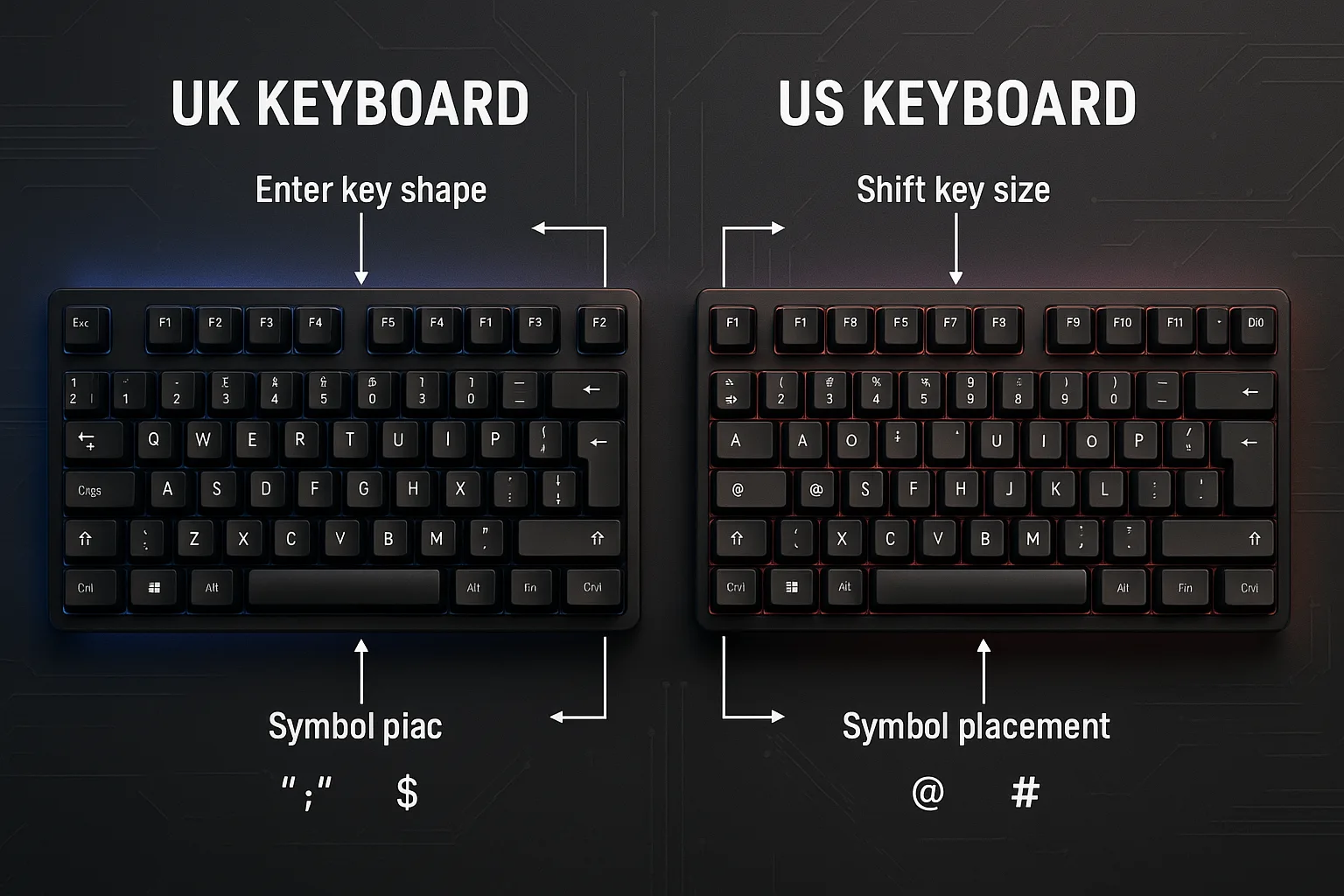
When users switch laptops or purchase new mechanical keyboards or relocate to different countries they face the common UK keyboard vs US keyboard issue. Your preferred symbols suddenly disappear or appear in unconventional placements. The Enter key presents a challenging experience. Even basic email address typing turns into an unanticipated source of frustration. So, what’s going on?
The small yet unexpectedly powerful difference between UK and US keyboard layouts exists here.
Even though both keyboards use the QWERTY layout pattern they remain distinct from each other. UK and US keyboards differ more than symbols because they have distinct layout standards and key counts and produce different typing sensations in everyday use. Any person who writes code or produces text or studies or wants to understand why their “@” appears incorrectly will find this guide helpful to explain all necessary information.
In this blog, we’ll compare the UK (ISO) and US (ANSI) keyboard layouts side by side. You’ll learn about symbol placement, ergonomics, use cases, and which layout is right for you. By the end, you’ll be able to make an informed decision, or at least stop pressing Shift + ’ every time you want an “@”.
Let’s start by answering the most common question people ask…
Quick Answer: What’s the Main Difference Between UK and US Keyboards?
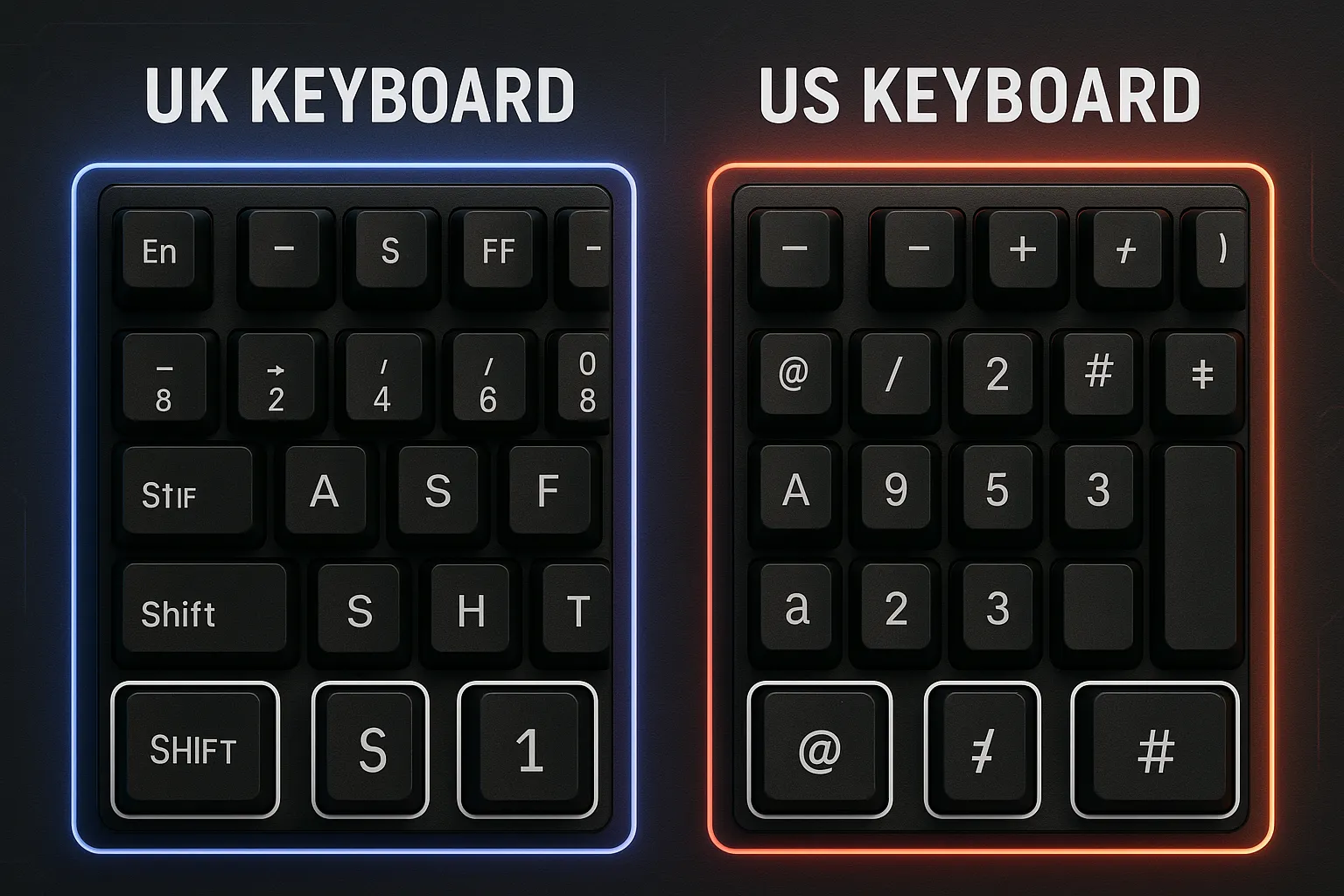
If you’re just looking for the short and simple answer to the difference between UK and US keyboards, here it is:
The main difference between UK and US keyboards is the layout standard they follow
- UK keyboards use the ISO layout with:
- An L-shaped Enter key
- A shorter left Shift key
- An extra key between the Shift and Z keys
- A dedicated key for the £ symbol
- US keyboards use the ANSI layout with:
- A rectangular Enter key
- A full-length left Shift key
- No dedicated key for the £ symbol
- Slightly different symbol placement (e.g., @ and “ are swapped)
“What’s the difference between a UK keyboard and a US keyboard?”
The UK keyboard has an L-shaped Enter key, a shorter left Shift, and a key for the pound sign (£), while the US keyboard has a rectangular Enter and longer Shift. They also place symbols like @ and “ in different spots.
These layout differences may seem small, but they can affect everything from typing comfort to programming efficiency and regional compatibility. In the next section, we’ll break down the ANSI vs ISO layout standards to understand the foundation behind these differences.
Layout Standards Explained: ANSI vs ISO
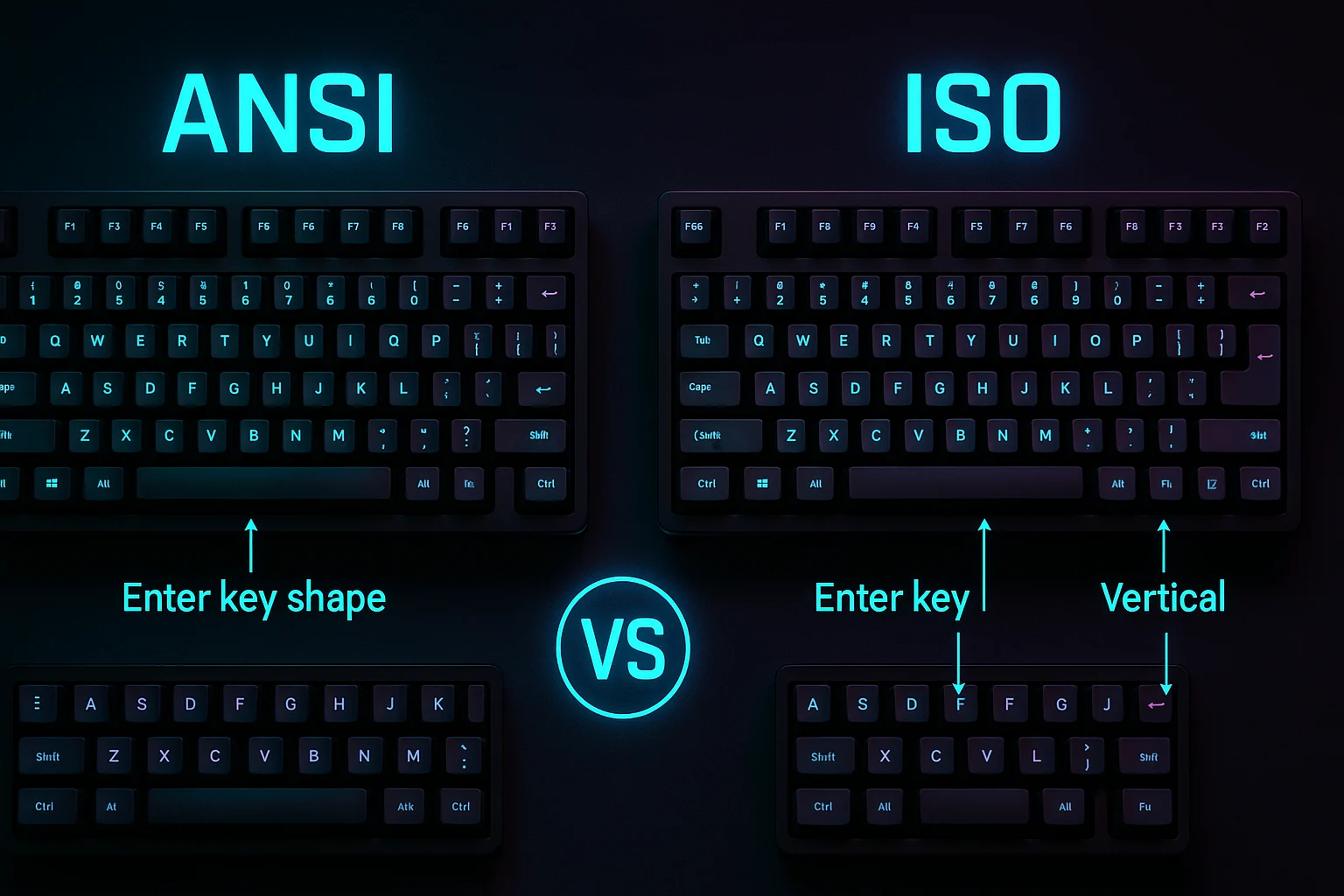
To truly understand the UK keyboard vs US keyboard debate, we need to start with the backbone of each layout: ANSI and ISO. These aren’t just random abbreviations—they define how your keyboard looks, feels, and functions.
🔧 What Is ANSI?
ANSI stands for the American National Standards Institute, and the layout is the default in the United States.
Key features of the ANSI layout:
- Rectangular Enter key (single-row)
- Full-length left Shift key
- 104 keys in total (on a standard full-size keyboard)
- More compact design, ideal for touch typists and gamers
ANSI layouts are popular among:
- Programmers
- Gamers
- General US users
- Mechanical keyboard enthusiasts (especially in North America)
🏴 What Is ISO?
ISO stands for the International Organization for Standardization, and it’s the standard followed in the UK, much of Europe, and parts of the Commonwealth.
Key features of the ISO layout:
- L-shaped (vertical) Enter key that spans two rows
- Shorter left Shift key
- Extra key located between the left Shift and the “Z” key
- 105 keys total on a full-size keyboard
- AltGr key for accessing extra symbols (like €, ¬, etc.)
ISO keyboards are commonly used by:
- UK and EU users
- People typing in multiple languages
- Users needing easy access to £, €, and other region-specific symbols
🔍 Key Shape and Ergonomic Differences
| Feature | ANSI (US Layout) | ISO (UK Layout) |
|---|---|---|
| Enter key | Wide, rectangular | Tall, L-shaped (vertical + horizontal) |
| Left Shift key | Full width | Shorter, with added key to its right |
| Extra symbol key | Not present | Located between Shift and Z |
| Key count (full size) | 104 keys | 105 keys |
⚖️ Practical Impact of ANSI vs ISO
- Typing comfort: If you’re used to one layout, the other can feel awkward, especially with the Enter and Shift keys.
- Software compatibility: Both layouts function identically on the OS level, but key positioning matters for muscle memory.
- Customization: Many mechanical keyboards are built with ANSI layouts, meaning ISO keycap sets can be harder to find.
So, while both ANSI and ISO layouts support the QWERTY format, they take different approaches to key sizing and positioning, especially in areas you use frequently, like Enter, Shift, and symbol keys. Next, let’s look at how these differences appear in a side-by-side key comparison.
For a broader look at ISO, ANSI, and other keyboard standards worldwide, check this Wikipedia article here.
Key-by-Key Comparison Table
Now that you understand the ANSI (US) and ISO (UK) layouts, let’s get into the real nitty-gritty: what’s physically different on the keyboards.
This side-by-side comparison breaks down each major difference in layout, shape, and symbol placement. Whether you’re a casual user or a keyboard enthusiast, this chart highlights how these small changes can create major usability shifts.
🧩 Key Differences Between UK and US Keyboards
| Key/Feature | US Keyboard (ANSI) | UK Keyboard (ISO) |
|---|---|---|
| Enter Key | Wide, horizontal rectangle (one row) | L-shaped, spans two rows (vertical + horizontal) |
| Left Shift Key | Full-length (long) | Shorter (to allow an extra key to the right) |
| Backslash (\) | Above Enter key | Left of the Z key |
| Symbol between Shift and Z | Not present | Present (used for \ or ` |
| @ Symbol | Shift + 2 | Shift + ‘ (next to Enter) |
| ” Symbol | Shift + ‘ | Shift + 2 |
| £ Symbol | Not available directly (requires Alt code: Alt + 0163) | Shift + 3 (direct key for the British Pound) |
| # Symbol | Shift + 3 | Dedicated key near Enter or Shift area |
| AltGr Key | Not available | Present (right of spacebar, used for € and special chars) |
| Total Keys (Full Size) | 104 | 105 |
🔍 Real-World Impact of These Differences
- Symbol Placement: If you’re switching layouts, the location of
@,#, and"can be incredibly disorienting. - Typing Experience: The shorter Shift key on UK keyboards can lead to more errors for users used to US layouts.
- Coding/Programming: The US layout provides easier access to brackets, braces, and slashes, which is why many developers prefer it.
- Currency and Accents: UK layout provides easier access to
£,€, and special characters via the AltGr key.
💡 Pro Tip
If you’re frequently typing in multiple languages or using currency symbols like
£or€, a UK layout may serve you better. But for code-heavy tasks or international standardization, US layouts often win for simplicity and accessibility.
Symbol Differences: Why They Matter
One of the most noticeable, and frustrating parts of switching between a UK and US keyboard is where the symbols are placed. Even though both layouts use the QWERTY format, key symbols like @, ", £, #, and \ are not in the same place.
For casual users, that might be a minor annoyance. But for programmers, writers, coders, and international users? It can seriously disrupt your workflow.
🔠 Common Symbol Placement Differences
Here’s a breakdown of how symbol positions differ between the UK and US keyboard layouts:
| Symbol | US Keyboard | UK Keyboard |
|---|---|---|
@ | Shift + 2 | Shift + ‘ |
" | Shift + ‘ | Shift + 2 |
# | Shift + 3 | Own key near Enter |
£ | Alt + 0163 (Windows) | Shift + 3 |
\ | Above Enter | Left of Z or next to Shift |
~ | Top-left (below Esc) | Often shares key with ¬ |
€ | Alt + 0128 or not available | AltGr + 4 |
💬 Real-World Impact
📧 Typing Emails and Logins
If you’re using a UK layout and type Shift + 2, you’ll get a " instead of @. This confuses users logging into email or social platforms—and it’s one of the most common complaints when layouts switch unexpectedly.
🧑💻 Programming & Coding
Programmers use @, {}, [], \, and # constantly. On the US keyboard, these symbols are more logically placed and easier to reach without extra keys like AltGr.
💸 Currency and Localization
Typing the British Pound (£) is seamless on the UK layout but awkward on a US keyboard (you’ll need to memorize Alt codes or remap). The Euro symbol (€) also requires AltGr on UK layouts, which US keyboards don’t even have.
🎯 Muscle Memory Conflicts
Switching from one layout to the other without physically changing keyboards can create major errors in typing, especially if you don’t update your OS settings. For example:
- UK keyboard with US layout =
Shift + 2gives@, but your keycap says" - US keyboard with UK layout =
Shift + 3gives£, but your keycap says#
🛠️ Can You Remap or Adjust This?
Yes! You can:
- Remap keys using tools like SharpKeys (Windows) or Karabiner (macOS)
- Switch layout in software (Windows, macOS, Linux)
- Use dual-layout setups to toggle between them (Win + Space on Windows)
So while these symbol differences may look minor, they can heavily affect your daily typing, especially if you rely on symbols for work, school, or communication.
Next up, let’s talk about who should use which layout, and why some people absolutely need one over the other.
Use Cases: Who Should Use Which Layout?
Choosing between a UK keyboard and a US keyboard isn’t just about regional preference—it’s about how you use your keyboard every day. From coding and writing to gaming and international typing, your needs should guide your choice.
Below, we’ve broken down the best layout for different types of users:
👨💻 For Programmers and Developers
Best layout: US Keyboard (ANSI)
Why:
- Easier access to critical programming symbols like
{},[],\,/,@,# - More ergonomic layout with a full-length Shift key
- No need for AltGr to reach brackets or slashes
💡 Did you know? Most programming tutorials, development tools, and keyboard shortcuts are designed with the US layout in mind. It’s considered the global default in tech.
📝 For Writers, Students, and Bloggers
Best layout: UK Keyboard (ISO)
Why:
- Dedicated
£key for British currency - Quotation marks (
") and @ symbol placement matches UK typing standards - AltGr key helps type accented characters or symbols used in European languages
💡 If you’re writing in British English, sticking with the UK layout helps avoid symbol confusion and supports regional spellings (like £, not $).
🌍 For Multilingual or International Users
Best layout: UK Keyboard (ISO)
Why:
- Includes AltGr key to easily type accented characters (
é,ü,ç) and special symbols like€,©, and§ - Better suited for users switching between English and European languages
💡 Ideal for translators, EU-based professionals, or anyone frequently typing non-English text.
🧳 For Travelers, Expats, and Digital Nomads
Best layout: It depends on your region of work
- If you’re living or working in the US, go with a US keyboard to match local hardware and software defaults.
- If you’re a UK expat in the US or vice versa, consider setting up a dual-layout system in your OS to switch seamlessly.
💡 Many digital nomads use a US keyboard for global compatibility, especially if they rely on co-working spaces or shared workstations.
🎮 For Gamers
Best layout: US Keyboard (ANSI)
Why:
- Larger left Shift key helps in fast-paced games (especially FPS titles)
- More mechanical keyboards available in ANSI layout
- More straightforward shortcut access in most games designed for the US market
⚖️ Summary: Layout Recommendation by Use Case
| User Type | Recommended Layout |
|---|---|
| Programmer / Developer | US Keyboard (ANSI) |
| Writer / Blogger / Student | UK Keyboard (ISO) |
| Multilingual / Translator | UK Keyboard (ISO) |
| International Traveler | Mixed / Dual Layout |
| Gamer | US Keyboard (ANSI) |
As you can see, there’s no one-size-fits-all solution. It really depends on your work style, location, and language needs. If you fall into multiple categories, don’t worry, you can always customize your layout in software.
Next, let’s look at how to switch or configure your keyboard layout on different operating systems so you can work comfortably no matter where you are.
Keychron offers models with both UK and US layouts — explore their selection here
How to Check or Switch Your Keyboard Layout in Windows/macOS/Linux
If you’ve ever bought a keyboard abroad or accidentally switched your layout and ended up typing gibberish, don’t worry. Every major operating system allows you to change your keyboard layout in just a few clicks.
Here’s how to check or switch between UK and US keyboard layouts on Windows, macOS, and Linux.
🪟 Windows (10 & 11)
✅ How to Check or Change Keyboard Layout:
- Go to Settings → Time & Language → Language.
- Click your language (e.g., “English (United Kingdom)” or “English (United States)”).
- Select Options.
- Under Keyboards, you’ll see your current layout (e.g., “US QWERTY” or “United Kingdom”).
- Click Add a keyboard to install a new layout or Remove to delete one.
You can change your keyboard layout in software settings on Windows using Microsoft’s official guide here.
🧠 Quick Shortcut:
- Press Windows + Spacebar to toggle between installed layouts.
🍎 macOS (Monterey, Ventura, Sonoma)
✅ How to Switch Keyboard Layout:
- Open System Settings → Keyboard → Input Sources.
- Click the + icon to add a new layout (e.g., “British” or “U.S.”).
- Choose the layout and click Add.
- You can check “Show input menu in menu bar” for easy switching.
🧠 Quick Shortcut:
- Press Control + Spacebar to switch layouts on the fly.
Mac users can follow Apple’s guide to switch keyboard input sources easily here.
🐧 Linux (Ubuntu & Debian-Based Distros)
✅ Steps (GNOME/Ubuntu Desktop):
- Go to Settings → Region & Language.
- Under Input Sources, click the + icon.
- Search and add “English (UK)” or “English (US)”.
- Drag to reorder or remove unwanted layouts.
🧠 CLI Alternative:
bashCopyEditsetxkbmap gb   # For UK layout
setxkbmap us   # For US layout
🧠 Quick Shortcut:
- Use Super + Spacebar (depending on distro) to switch layouts.
💡 Pro Tips:
- You don’t need to buy a new physical keyboard to use a different layout.
- You can label or customize keys using stickers or overlays.
- Use software like AutoHotkey (Windows) or Karabiner-Elements (macOS) to remap keys if you prefer one layout but need access to the other.
🤔 What If the Keys Don’t Match What You Type?
This is a common issue when the keyboard’s printed layout doesn’t match your OS setting.
For example:
- Using a UK keyboard with US layout will cause symbol mismatches (e.g., Shift + 2 will produce
@instead of"). - Always match your physical keyboard with the layout selected in your OS for best results.
Real-World Experience: What It Feels Like to Switch Between UK and US Keyboards
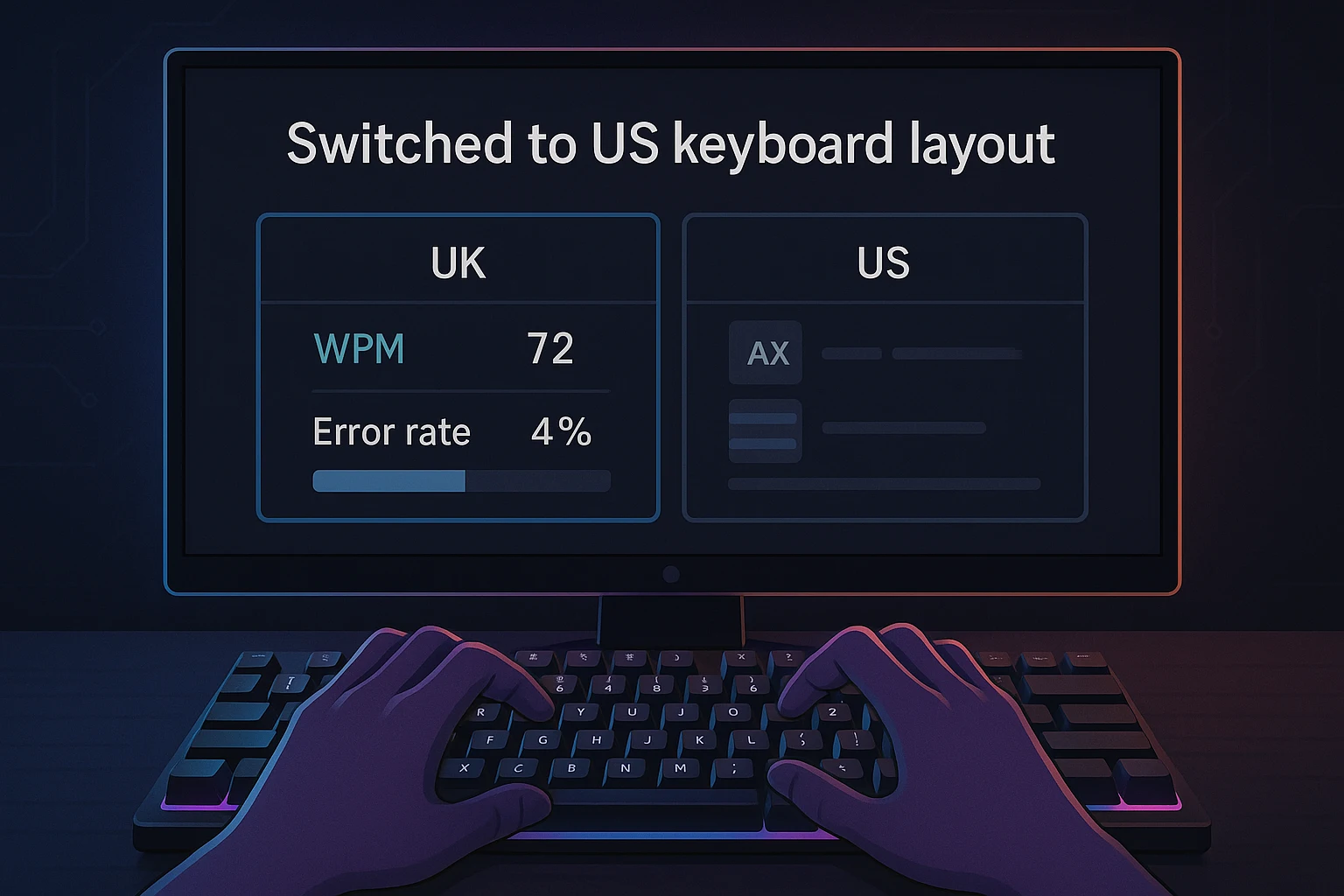
Switching between the UK and US keyboard layouts may seem like a minor change, but in real-world use, it affects both muscle memory and typing efficiency. Users often report a noticeable adjustment period, especially when moving between ISO and ANSI layouts.
Many users on platforms like Reddit and Quora describe frustration when they first switch layouts. A Reddit user on r/MechanicalKeyboards shared that transitioning from a UK ISO layout to a US ANSI keyboard caused them to frequently mistype quotation marks and slashes during coding sessions. Similarly, a Quora user reported accidentally hitting the backslash (\) key when aiming for the Enter key on a US layout because they were used to the larger L-shaped Enter on a UK keyboard.
In typing tests, users who are familiar with one layout generally see a 10-15% decrease in words per minute (WPM) and a spike in error rates when switching to the other layout—at least for the first few days. The most common mistakes include:
- Pressing the
@symbol and getting a"instead (and vice versa) - Misplacing the backslash or pipe symbol (
\or|) - Hitting the wrong Shift key due to size differences
However, most users adapt within a week of consistent typing. Touch typists may take longer due to ingrained key positions, but casual users generally adjust faster.
If you’re constantly switching between layouts (say, using a US laptop and a UK external keyboard), consider setting up both layouts in your operating system and using a shortcut to toggle between them. That way, you won’t lose accuracy when switching hardware.
Hardware Considerations: Can You Just Change the Layout in Software?
Yes, you can change your keyboard layout in your system settings—but hardware still matters more than you might think.
Even when you change the layout in software (say, from US to UK), the keycap labels don’t magically change. So unless you’ve memorized the layout, you’ll be guessing every time you need a special character.
For example, the UK layout includes a dedicated key for £, while the US layout does not. You can map this in software, but if your physical keyboard doesn’t reflect it, you’ll still fumble unless you’re a touch typist.
Keycap shape and size are also a big deal. The ISO layout used in UK keyboards has a taller, vertical Enter key and a shorter left Shift key. If you’re used to ANSI (US), you might find ISO a bit cramped or misaligned, especially during fast typing or gaming.
If you’re shopping for a keyboard, it’s better to buy one with the correct physical layout for your needs. Most big brands offer both variants:
- Logitech – Offers both UK and US layouts across most models
- Keychron – Has international ISO layouts available for pre-order or special edition runs
- Razer – Some models like the BlackWidow and Huntsman are available in UK format
- Ducky – Offers both layouts, often labeled clearly as ANSI or ISO in the specs
Make sure you check the product listing carefully, many international sellers default to US layout even when shipping to UK or EU.
Pros and Cons
Here’s a quick side-by-side comparison to help you visualize the differences and decide which is better for you:
| Aspect | US Keyboard | UK Keyboard |
|---|---|---|
| Symbol Placement | Better for coding/programming | Better for local/regional typing |
| Enter Key | Rectangular, easier to reach | L-shaped, taller but narrower |
| Shift Key | Full-length left Shift | Shorter with extra key |
| AltGr Function | Not included | Included (for £, €, etc.) |
| Availability | Widely available globally | Mostly in UK/EU regions |
Frequently Asked Questions (FAQs)
Which keyboard layout is better for typing?
It depends on your location and what symbols you use most. For British users writing in UK English, the UK layout may feel more natural. For global content creators or typists, the US layout is often more streamlined.
Is ISO or ANSI better for gaming?
Most gamers prefer ANSI (US layout) because the larger left Shift key is more accessible during gameplay, especially in FPS titles.
Can I use a US keyboard in the UK?
Yes, you can. Just be prepared for minor symbol mismatches unless you switch the layout in software or memorize the key positions.
How do I type £ on a US keyboard?
Press Alt + 0163 on the number pad (Windows) or Option + 3 (Mac) to get the £ symbol. Alternatively, switch your software layout to UK temporarily.
Is the UK layout good for programming?
It works fine, but most programming tutorials, IDE defaults, and keybindings are designed with the US layout in mind. For coding efficiency, US is typically recommended.
Final Verdict: Which Layout Should You Choose?
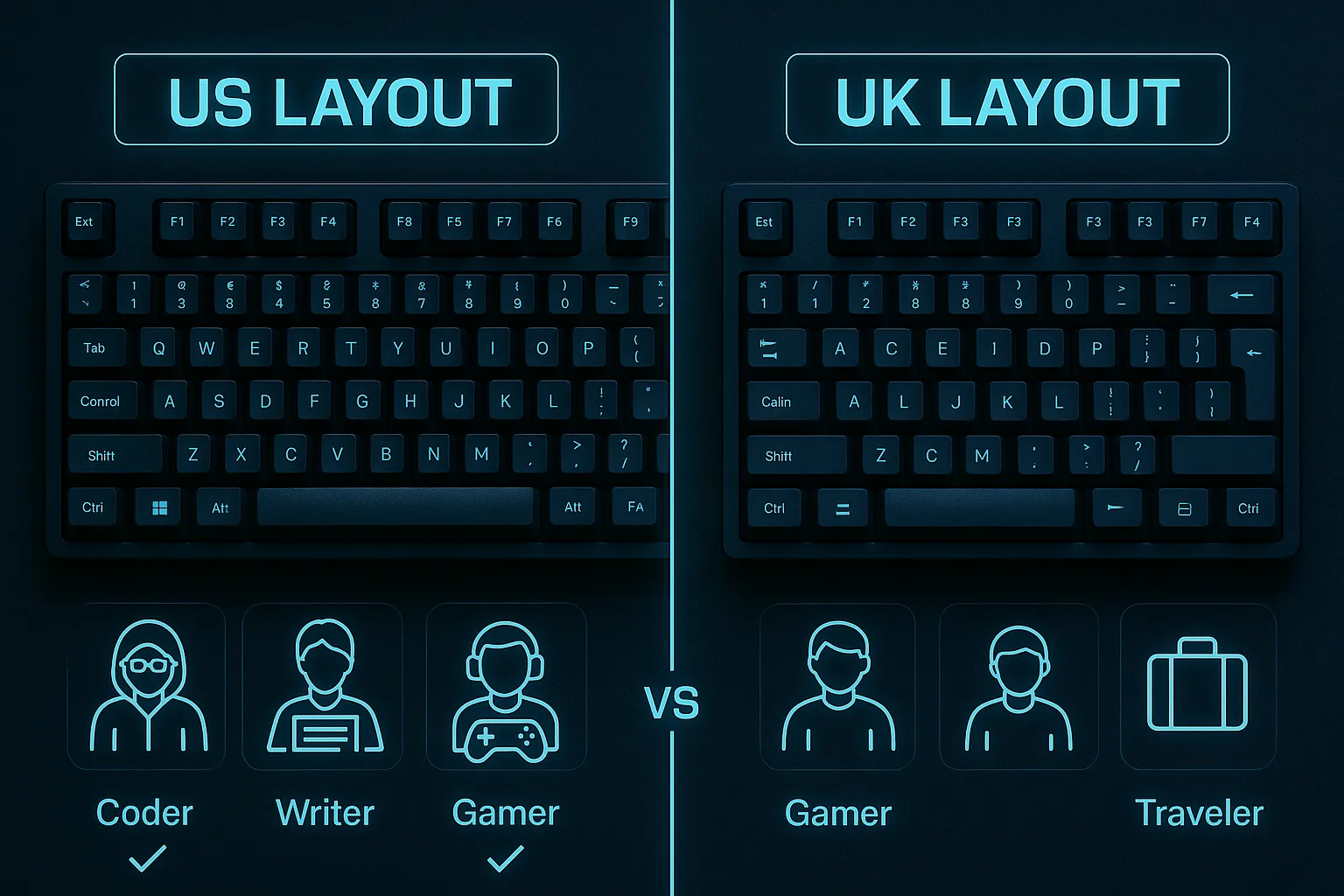
Let’s recap:
- The UK layout (ISO) features a larger Enter key, a dedicated £ symbol, and an extra key near the left Shift.
- The US layout (ANSI) is more commonly used globally, easier for programming, and has a cleaner, more compact design.
If you’re a programmer, gamer, or international user, the US layout is likely your best bet. If you’re based in the UK, write for British audiences, or use currency symbols like £ and € regularly, the UK layout will feel more intuitive.
💡 Pro Tip: If you’re buying a new keyboard, always make sure the physical layout matches the software layout you plan to use. Don’t rely solely on system settings—what’s printed on the keycaps matters more than you think.
Ultimately, the right layout depends on how you work, where you live, and what symbols you use every day. Choose the one that fits your habits, or use both if you need flexibility.